Use cases and queries
See What Scrutinizer Returns to Your AI
Ask a network question in the AI client your team already uses. Scrutinizer runs the underlying report, alarm search, host lookup, or investigation and returns the network data the client uses to answer.
The interface can change. The network data behind the answer comes from Scrutinizer.
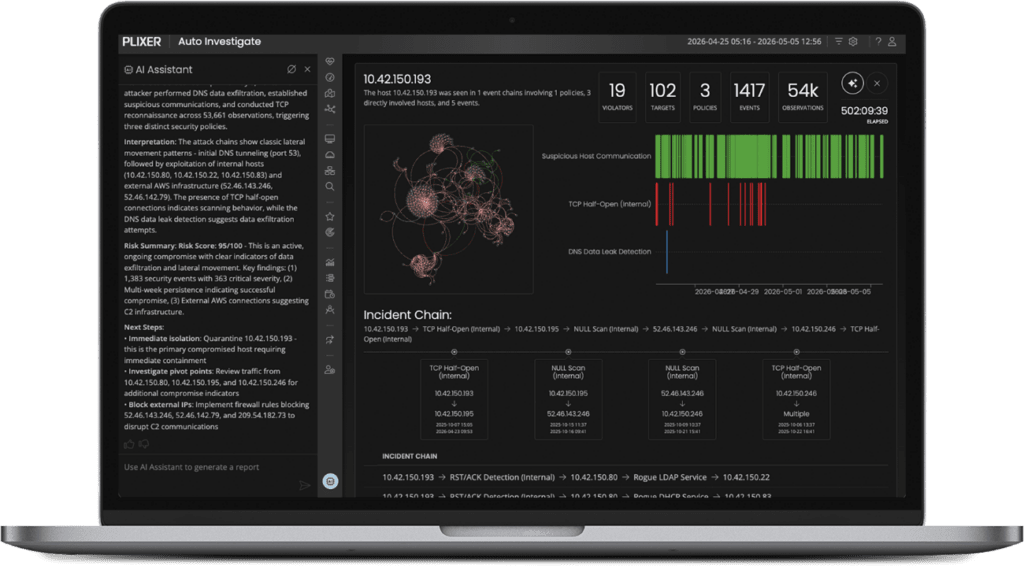
One question. The network details behind the answer.
The result depends on what was asked, the Scrutinizer tool used, the available data, and the access available to the connection. The AI client decides how to present what comes back.
You ask
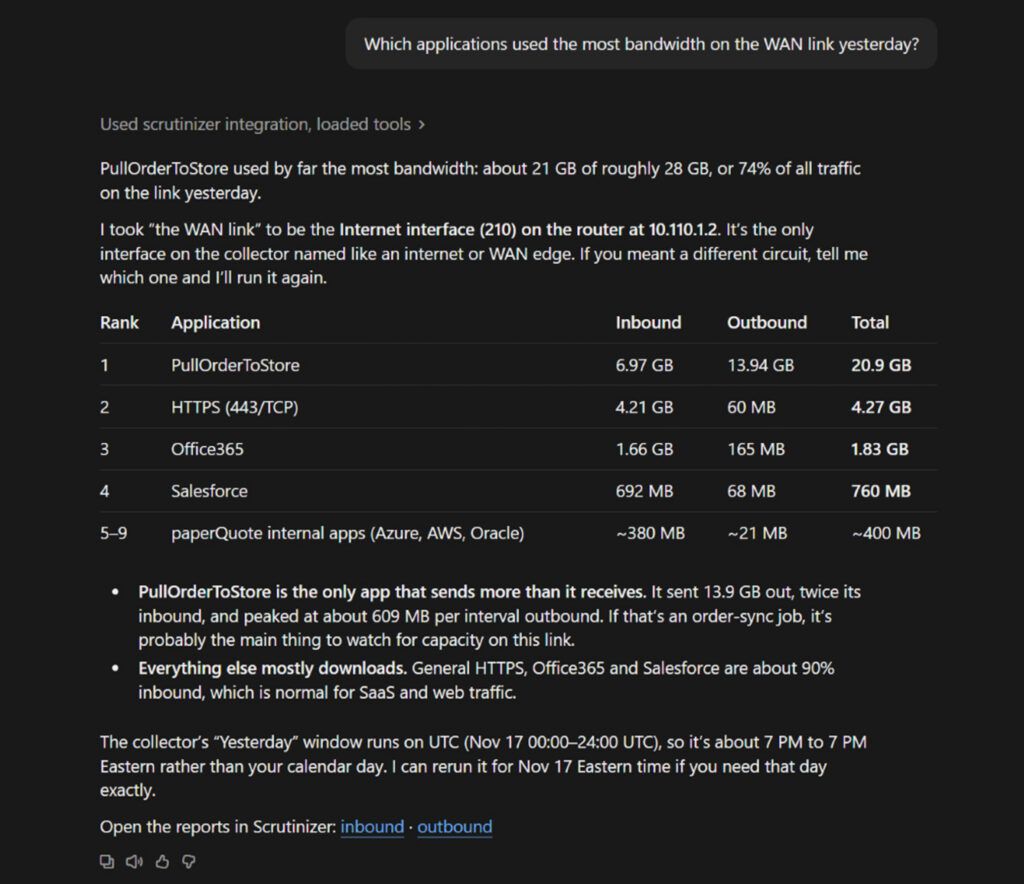
“Which applications used the most bandwidth on the WAN link yesterday?”
Behind this answer: the applicable Scrutinizer flow report, requested time range, and selected network scope.
You ask
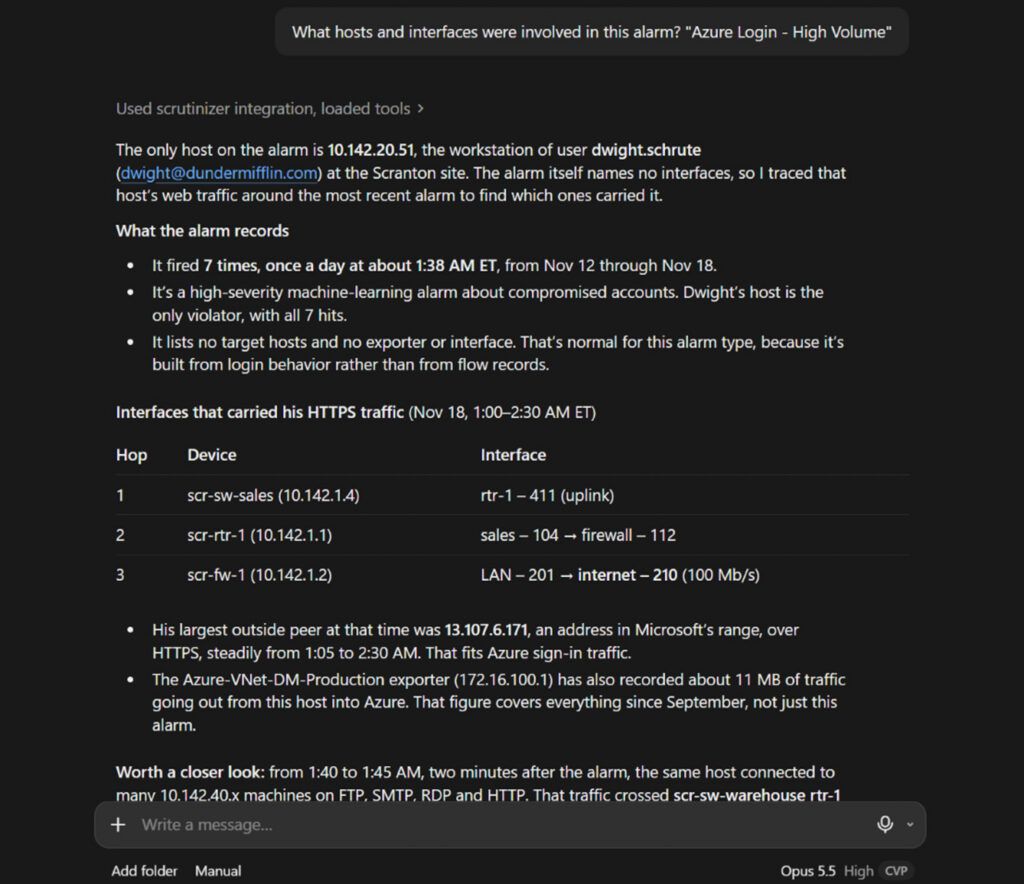
“What hosts and interfaces were involved in this alarm?”
Behind this answer: alarm context, affected network objects, and related results available to the connected tools.
You ask
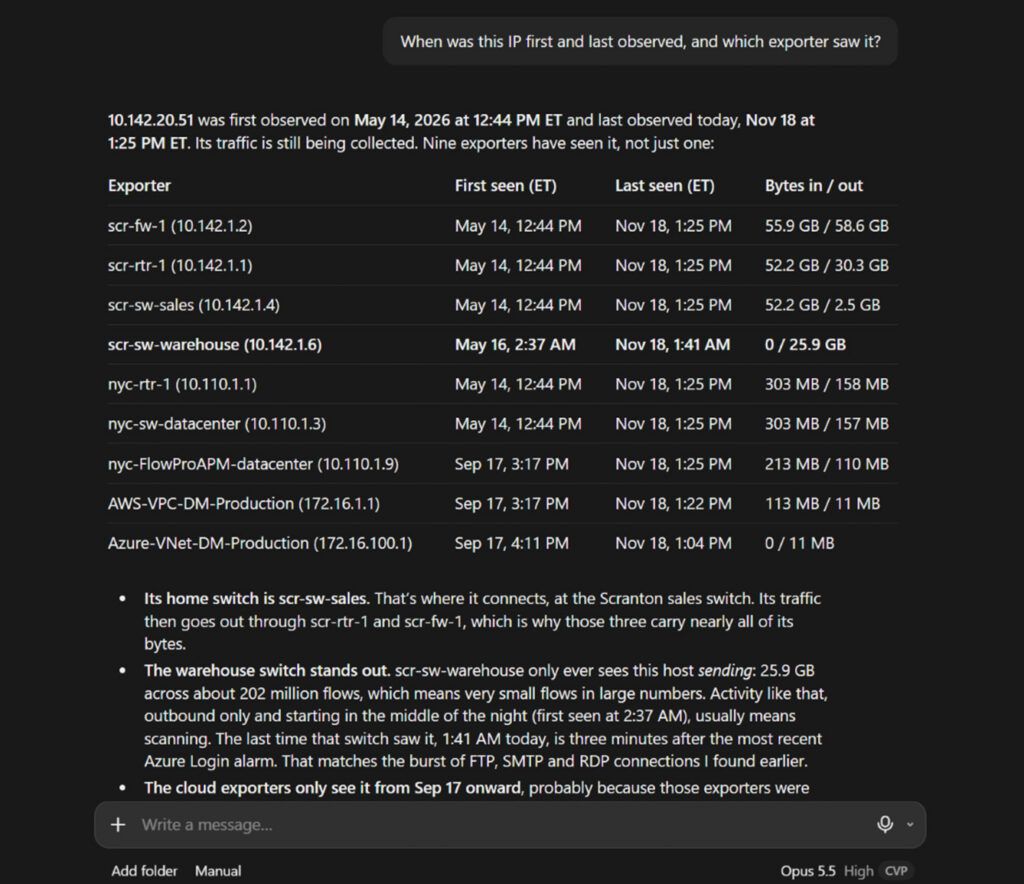
“When was this IP first and last observed, and which exporter saw it?”
Behind this answer: the searchable per-IP host index and the fields available for that host.
Searchable host history. Scrutinizer keeps one year of searchable per-IP host history by default, counted from the IP’s last observation. The preserved host-index fields include the IP address, first- and last-observation bounds, packet delta, byte delta, flow delta, and exporter. Full-detail flow retention is configured separately.
Don’t stop at the response, follow it to the answer
A useful network response should give you somewhere to go next. Ask what consumed the bandwidth, then narrow the result to the hosts behind it. Start with an alarm, then pull the related traffic. Look up an IP, then use the returned history and exporter to keep investigating.
The Scrutinizer MCP Server supports more than a conversational lookup. It connects your AI client to Scrutinizer capabilities for running flow reports, browsing alarms, resolving network context, and continuing the investigation from the results returned by Scrutinizer.
Start broad. Get specific. Keep going.
01
Ask the First Question
Which applications used the most bandwidth on this interface yesterday?
02
Narrow the Result
Show me the hosts behind the top application.
03
Follow What You Found
What else was this host communicating with during that time?
04
Verify in Scrutinizer
Check the returned scope and supporting results in Scrutinizer.
Frequently Asked Questions
Can I ask follow-up questions about a result?
Yes. When the AI client maintains the conversation context and the required Scrutinizer tools remain available, you can continue from the first result instead of starting a new investigation. For example, start with a traffic report and then narrow the result to a host, interface, application, or related network activity.
How does the AI client generate answers from Scrutinizer data?
The AI client selects which MCP tools to call based on your question. Those tools return raw data from Scrutinizer, which the AI model interprets to generate an answer.
Can I verify an MCP answer in Scrutinizer?
Yes. Ask the Plixer AI agent in Scrutinizer the same question you asked your external AI client to compare the results.
How far back can I ask about a host?
Scrutinizer keeps one year of searchable per-IP host history by default, measured from that IP address’s last observation. The host index preserves the IP address, first- and last-observation bounds, packet delta, byte delta, flow delta, and exporter. Full-detail flow retention is configured separately.
Can MCP work with other data sources too?
An MCP-compatible AI client can connect to more than one MCP server. Cross-system analysis still depends on shared identifiers, aligned time ranges, and the appropriate permissions across the connected systems.